
BlogGuide
How to convert PDF sheet music to MusicXML for MuseScore
A clean printed page, its actual reading and one missing grace note: a worked example you can open and check yourself.
The short answer
Read the PDF with optical music recognition (OMR), check the notes against the page, then open the resulting MusicXML in MuseScore. MusicXML carries editable notation; a PDF carries the printed page. In the example below the reader missed a small grace note, so opening the file successfully was only the start of checking it.
- Reada clean PDF or flat scan
- Comparethe notes with the printed page
- Correctthe errors you can identify
- OpenMusicXML in MuseScore
What do you need before converting?
Use a clean PDF of printed staff notation and keep an untouched copy. Start with one page so you can judge the reading before working through a whole book. A flat, legible scan is a better starting point than an angled photo; if the score is already available as MusicXML, use that file directly.
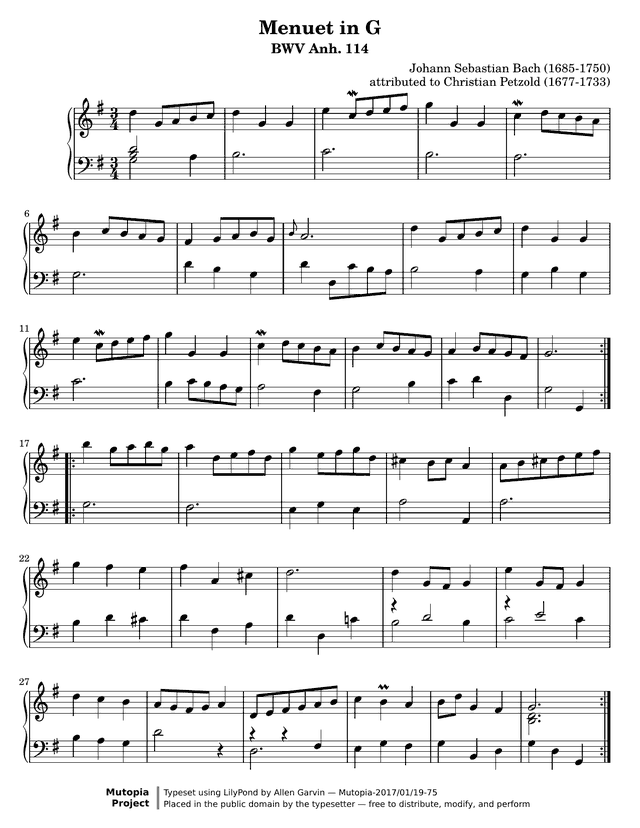
Our example is the Mutopia Project’s public-domain edition of Minuet in G, BWV Anh. 114, attributed to Christian Petzold and typeset by Allen Garvin. You can download the original PDF, the uncorrected MusicXML and the MusicXML with the grace note restored. These example files need no account.
How do you turn the PDF into editable notes?
A sheet-music reader identifies the notes and symbols on the page and offers an editable score. Changing the filename from .pdf to .musicxml does not do this. Readers differ in what they accept and what they export; check MusicXML export before processing a long score.
In ScoreStarling, use PDF sheet music to MIDI to choose the PDF. Check its preview against the page before continuing. Reading a PDF uses 10 credits a piece after the free 30-second preview; MusicXML and MIDI downloads come with Plus or a credit pack. The page accepts up to 12 PDF pages. You can also use another OMR reader and follow the same checks below.
What should you check before exporting?
Check the music before its page layout: key and time signatures, notes, rhythm, hands and small symbols. Listen while following the original, but also look at ornaments and repeats; a plausible playback can still leave them out.
- Compare the first bar and the start of each new system, including octaves in the left hand.
- Check accidentals and how long they apply within a bar.
- Count the beats where there are ties, dotted notes or several voices.
- Check grace notes, ornaments and repeat signs individually.
Our October 13, 2026 reading test found no main-note pitch errors in bars 1–16 of this clean PDF: 101 notes checked. It did miss the grace note in bar 8. That is one historical reading of one page, not an accuracy promise for your score. The uncorrected download preserves that result.
How do you open MusicXML in MuseScore?
In MuseScore Studio, choose File → Open and select the .musicxml file. A compressed .mxl file works too. Keep the PDF open beside it and check the key, time signature, staves and a few bars again.
MuseScore’s MusicXML guide explains that transferred scores can need layout cleanup. Different spacing or page breaks alone do not prove that notes changed. Finish checking the music before moving systems or changing fonts.
Worked correction: restore the grace note in bar 8
Bar 8 begins with a dotted half-note A4 in the right hand. The PDF has a small eighth-note B4 just before it; the uncorrected MusicXML has only the A4. Restore that B4 as a grace note, without replacing or shortening the written A4.
- Open the uncorrected MusicXML and select the right-hand A at the start of bar 8.
- Open the Grace notes palette and choose the eighth-note grace symbol without a slash, matching the PDF.
- Select the new small note and adjust its pitch to B4, one step above A4. Check it against the PDF.
- Save a separate local copy with File → Save As, so the uncorrected reading remains available.
The MuseScore grace-note guide describes adding a grace note to a selected parent note. A grace note does not add beats to the written bar. The corrected download adds this one B4 to the existing reading; it does not claim to correct every ornament or repeat in the piece.
For this tutorial we checked the corrected file in MuseScore Studio 4.7.5 on October 20, 2026, then exported and reopened MusicXML. The added grace note and the existing timed notes were checked separately. Keep both files so you can compare the change.
What should you save for later editing?
Save MuseScore’s own score file for your continuing work, MusicXML when you need another notation program to open the music, and the original PDF as your reference. Keep the uncorrected reading too. MIDI is useful for a DAW, but it is a less suitable intermediate file when the next task is editing notation; MusicXML vs MIDI vs PDF explains the difference.
What if the scan reads badly?
Try a cleaner source before spending time fixing every note. Our angled-photo test of this same page failed, with missing bars and the wrong key. A clean-PDF result does not establish the same accuracy for photos, handwriting or jianpu. For a short passage, entering it by hand may be quicker than repairing an unusable reading.
When a file opens but sounds wrong, return to the PDF and check one passage at a time. A successful export proves that another program can open the file; it does not prove that the music was read correctly.
Sources
- Mutopia Project: Menuet, BWV Anh. 114 — source edition, typeset by Allen Garvin, public domain.
- Opening and saving scores — MuseScore Studio Handbook, read October 20, 2026.
- Working with MusicXML files — MuseScore Studio Handbook, read October 20, 2026.
- Grace notes — MuseScore Studio Handbook, read October 20, 2026.
Questions and answers
Can I open a PDF directly as editable notes in MuseScore?
A PDF must first be read by optical music recognition or entered by hand. Open the resulting MusicXML in MuseScore, then compare its notes with the PDF before editing.
Should I convert the PDF to MIDI first?
For editing notation, choose MusicXML directly when the reader offers it. Going through MIDI makes the notation program infer written rhythms and voices again.
Will the MusicXML look exactly like the PDF?
Expect spacing, fonts and page breaks to change. Check the music first, then adjust the layout in your notation editor.
Can I try the example without an account?
Yes. The original PDF, uncorrected MusicXML and corrected MusicXML below are public downloads. Open either MusicXML file in MuseScore to compare them.